




Which review guide should I start with?
Choose the guide that matches the task in front of you. If your review page is already working but asking feels awkward, start with our guide to asking for Google reviews. The Google review invitation examples give your team a short, honest request without asking for a particular rating. Agree on that wording before printing signs or handing staff a card.
If customers cannot reach the right business profile, fix the route before changing the wording. Our Google review QR code guide covers getting the official code, checking the location, and testing a printed version. The tap card setup guide explains how to verify the business name, location, and review destination for an NFC card.
Should I use a tap card, a QR code, or a stand?
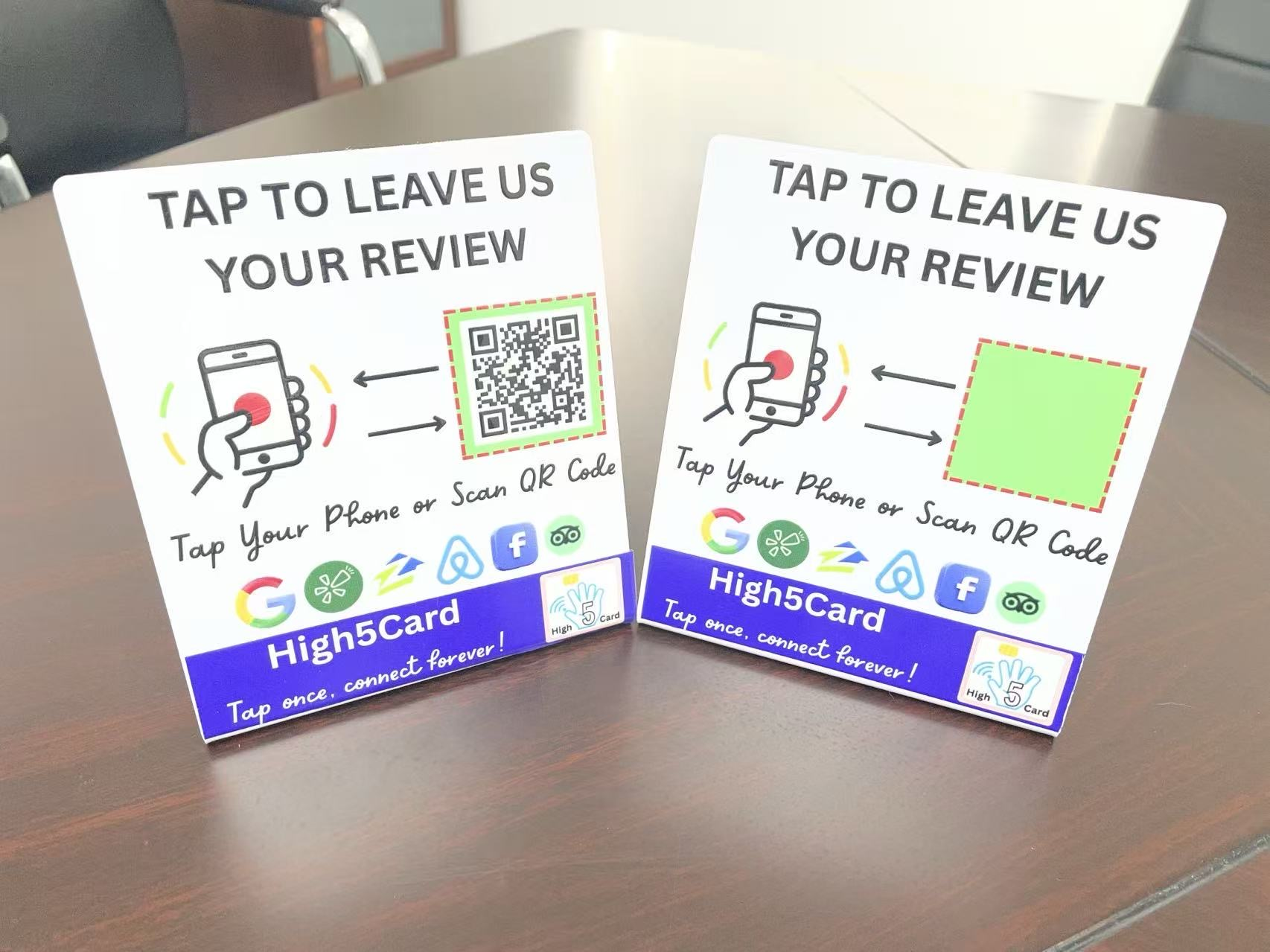
Use a format that fits where the customer finishes their experience. A card is easy to bring to a completed appointment or a mobile service visit. A stand can keep the invitation visible at reception or beside a pickup counter. A QR code gives someone a camera-based route, while an NFC tap needs a compatible phone and a deliberate close-range interaction. The NFC Forum’s technology overview explains the close-range exchange used by NFC tags.
Choose a placement where the customer can decide comfortably. A review request should not interrupt payment, block a counter, or make a customer feel watched. A neutral sign can explain what happens next: “Tap or scan to share your experience.” Keep the display separate from payment instructions so customers do not confuse leaving feedback with completing their purchase.
Can the tap and the QR code open different pages?
The High5Card Review Tap Stand can use the same destination for both routes or a separate destination for each. Matching links give customers two ways to reach one review page. Different links can offer a choice of platforms, such as a Google review page by tap and a Facebook page by scan. Label both actions clearly so customers know where each route leads.
Read our two-link review stand guide before choosing the arrangement. Check each platform’s rules before inviting reviews there. Having a link available does not mean every platform encourages businesses to request reviews. Avoid offering a choice that staff cannot explain in one sentence, or a destination your business no longer maintains.
How do I invite honest reviews without applying pressure?
Ask customers to describe their own experience, give everyone the same opportunity, and leave the choice with them. A simple invitation is enough: “Thank you for visiting. If you would like to share your experience, our review link is here.” There is no need to ask someone to write immediately, choose five stars, mention an employee, or show you a finished review.
Google’s review guidance allows review links and QR codes but prohibits incentives for posting, changing, or removing reviews. Keep discounts, gifts, and prize entries separate from requests for feedback. A disappointed customer should have the same access to the review route as a delighted customer. Help with a complaint because it needs attention, without making that help conditional on a review.
What should I test before displaying a review tool?
Test the finished item with the exact link customers will use. Scan the printed code rather than only the image on your screen. Tap the physical card or stand with a compatible phone. Check the business name and address after the page opens, particularly if several locations have similar names. Stop before submitting anything; checking a link never requires creating a test review.
Try a second phone and ask a colleague unfamiliar with the setup to explain the next step. A successful scan alone is not enough if the code opens an old branch or an unrelated page. Keep a backup link for customers who prefer a message. Record who checks the setup after a move, a business name change, a new print run, or a customer report that the destination failed.
How can I keep the routine useful for my team?
Give staff one approved destination per location and one optional invitation they can remember. Explain where the card or stand belongs and who can replace damaged materials. A short handover is more useful than a long script. Staff should know that the tool opens a page, while the customer controls whether to sign in, write, and publish.
Review incoming feedback as part of normal customer care. Notice repeated questions, confusing handoffs, or useful compliments rather than turning each interaction into a demand for a review. When you are ready to choose a format, compare High5Card review cards and stands. Start with the customer’s next step and choose the physical tool that makes that step clear.