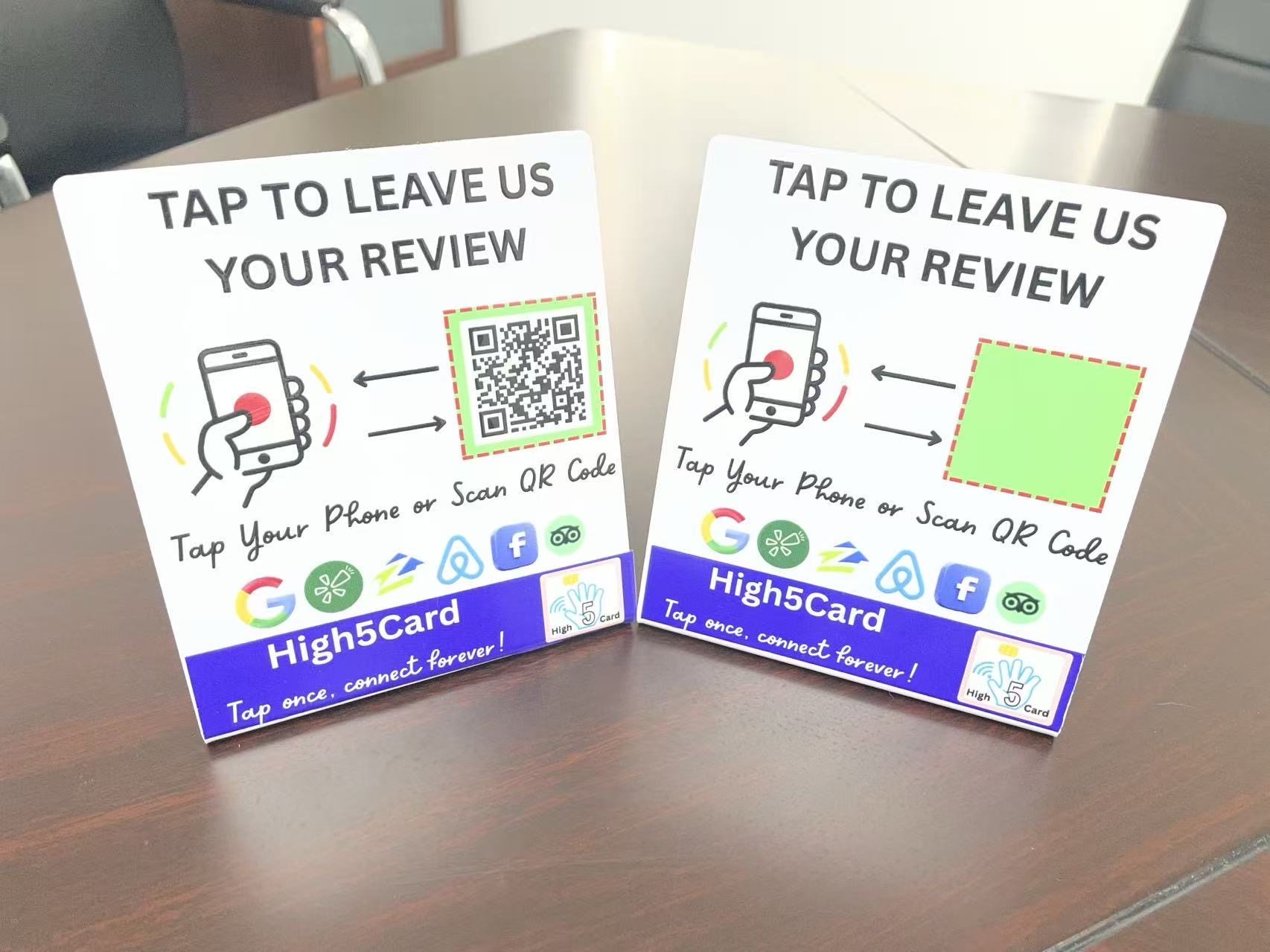
This signing-table tip comes from the routine shared by High5Card: offer a phone tap for a Google review and a QR scan for feedback on your own website. Give every signer the same choice, keep it optional, and let your final check take the time it needs.
1. Keep the review card where the conversation happens
Here is the signing-table routine shared by High5Card:
“Fellow notaries and LSAs, I started using a review card on my badge reel. After the last signature, I hand it to the signer and say: ‘While I double-check the docs to make sure we didn’t miss anything, would you mind leaving me a quick review? Just tap your phone here.’”
The useful detail is the badge reel. A card that is already with you is easier to offer than something buried in your bag. You do not have to pause the wrap-up to find a separate sign, open a website, or spell out a long address.
A High5Card review tap card can make that destination easy to reach. How you carry it should still suit your actual work setup. Keep the card separate from documents, make its instructions readable, and offer it where the signer can comfortably use their own phone.
- FinishWait until the signing is complete before asking.
- OfferInvite an honest review while you make your final check.
- RespectLet the signer choose to review now, later, or not at all.
2. Use a short invitation after the last signature
The invitation works because it explains what is happening next. You are checking the documents. The signer can choose to share feedback during that pause. There is no need for a long sales pitch.
“While I double-check the docs to make sure we didn’t miss anything, would you mind leaving me a quick review? Just tap your phone here.”
Then explain the second option in plain language: “You can tap for Google, or scan the QR code to leave feedback on my website.” This lets the signer choose a route before they start. If the website form does not require an account, you can mention that too.
After asking, return your attention to your final check. Do not watch the screen, wait for a particular rating, or ask to approve the words. For other moments when an in-person request is not a good fit, keep a few simple review request messages ready.
3. Give tap and scan two clear destinations
In this routine, NFC and QR do different jobs. They are two ways to give feedback, with different destinations. That needs to be clear on the card and in the invitation.
| Action | Destination | What to explain |
|---|---|---|
| Tap the NFC card | Your Google Business Profile review page | A Google account is needed to post a Google review. |
| Scan the QR code | The testimonial submission page on your own website | No login is needed only if your form is set up that way. |
The tap destination should open the review-writing step for the correct business, rather than leaving someone to search for you. The QR should open the actual feedback form, rather than a homepage where the signer has to hunt for it.
Label each action with its result. “Tap to review on Google” and “Scan to share feedback on my website” tell someone what will happen before they use either option. Our guide to using NFC and QR for two links explains the same two-destination idea in a tabletop setup.
- Tap NFCOpen your Google Business Profile review page.
- Scan QROpen your website testimonial submission page.
- Text a linkOffer a direct link if the signer prefers it.
4. Make the website option useful for people without Google accounts
Google confirms that people must sign in to a Google Account to leave a review. Some signers will already be signed in. Others will not have an account, will not remember the password, or simply will not want to use it during the appointment.
Your own website can offer another route if it has a working testimonial submission form that accepts feedback without a login. That is a condition to check, not something a QR code creates for you. A QR opens a destination; it does not add a form or change the form’s account requirements.
Before calling the website option “no login,” open it in a private browser window and complete a test submission. Make sure the feedback reaches you. If you intend to publish comments, explain that clearly and obtain the permission your process needs. Feedback sent to your website does not automatically become a Google review.
5. Keep these three signing-table lessons
Ask after the signing is done, never during
Let the appointment reach its natural wrap-up before introducing reviews. Your signer should not be juggling instructions, signatures, and a feedback request at the same time. A card can stay visible without becoming another task during the signing itself.
Your final check remains the priority. If a document needs attention or the signer has a question, address that first. The review invitation can wait or be skipped. A calm closing experience matters more than fitting a request into every available minute.
Ask every signer the same way
Offer the same neutral invitation and the same two destinations regardless of how you think the appointment went. Do not reserve Google for people who seem pleased or send dissatisfied people only to your private form. Choice should be based on the signer’s preference, not the rating you hope to receive.
Google’s review contribution policy prohibits incentives for reviews and selectively soliciting positive reviews. Keep the request honest: no gifts, no requested star rating, and no pressure to change a comment.
For signers who aren’t tech-savvy, offer to text the link
Someone who cannot find the NFC reader or scan the code may prefer a simple message. Ask whether they would like the link by text, then confirm which destination they want. Send it only with their permission and through your normal appropriate contact process.
Keep that message short and optional. “Thanks for your time today. Here is the feedback link you requested” is enough. Do not make someone troubleshoot a phone at the table to be polite.
6. Set up and test the whole journey
Test the experience from the signer’s side before adding the card to your routine. A neat card does not help if the link opens the wrong business or a form that cannot be submitted.
- Confirm your Google destination. Open your business’s own review link and check the name displayed. Follow the review tap card setup guide when preparing that route.
- Confirm your website destination. Use the full address of the testimonial submission page. Check the form on a phone without being signed in to your website.
- Test tap and scan separately. They should reach their intended pages. Test the physical card, not just the addresses saved in your notes.
- Name the QR clearly. The High5Card QR generator embeds a visible name in the image. Choose a useful label such as “Website feedback” so the image is understandable when saved or shared.
- Check the card in its holder. Make sure the badge reel, clip, or sleeve does not hide the QR code or either instruction.
Try the setup in the position where you will actually offer it. The signer should be able to hold the card steady, see the whole code, and read the labels without moving documents out of the way.
Keep both destination links somewhere you can easily access when a signer requests a text. Recheck the card whenever either destination changes. A new website address or a replaced feedback form is a reason to test again.
7. Avoid turning a helpful pause into pressure
The goal is to make feedback convenient, not to make the signer feel that finishing a review is part of the appointment. If they decline, accept it warmly and continue. If they would rather do it later, let them.
This routine uses the final check as an available moment. It does not guarantee the review will be finished before the bag is packed. Phones need updates, accounts need passwords, and people have their own schedules. Leave room for all of that without making the appointment feel delayed.
Do not ask someone to show you their finished review. Do not take their phone to enter a rating or write a comment for them. They should be able to describe their own experience in their own words.
Keep document details and personal information out of the request. If you photograph your card setup to share the idea with other notaries or LSAs, move signing paperwork and personal details out of view first. A simple product photo can explain the routine without showing anyone’s private appointment information.
8. Build a card around the way you work
The High5Card review tap card gives this routine a portable starting point. Before ordering, decide what each action should open and how you want those choices labeled. Clear instructions help the signer choose without needing a full explanation every time.
For a design built around your own business, explore custom cards or contact High5Card with your intended destinations. Check that the finished setup supports your tap and scan plan before using it at an appointment.
Keep the routine simple: finish the signing, offer both options, do your final check, and respect the signer’s choice.
Frequently asked questions
When should a notary ask for a review?
Ask after the signing is complete, when the appointment is moving into its wrap-up. In the routine shared here, the invitation happens before the notary’s final document check. If a question or document issue needs attention, handle that first. A review request should never distract from the signing or make feedback feel required.
Can NFC and the QR code open different pages?
Yes, when the card is configured that way. In this setup, the NFC tap opens the Google Business Profile review page, while the QR code opens the notary’s own testimonial submission page. Label both choices clearly and test the finished card. Do not assume the two destinations are different without checking them.
Can someone leave a Google review without a Google account?
No. Posting a Google review requires a Google Account. A testimonial form on your own website can offer another option if it accepts submissions without a login. Check that setup before promising a no-account experience. Website feedback stays separate from Google reviews; submitting to one does not publish to the other.
Should I direct only happy signers to Google?
No. Offer the same Google and website options to everyone you invite to give feedback. Let the signer choose according to their own preference. Avoid requesting a particular rating, giving a reward, or using a private feedback question to decide who receives the Google link. The invitation should welcome honest experiences.
What if the signer cannot tap or scan the card?
Offer to text their preferred feedback link, with permission. They can open it when convenient without troubleshooting their phone during the appointment. If they do not want a message or a review request, leave it there. The card is a convenience, and the signer should remain free to decline.