
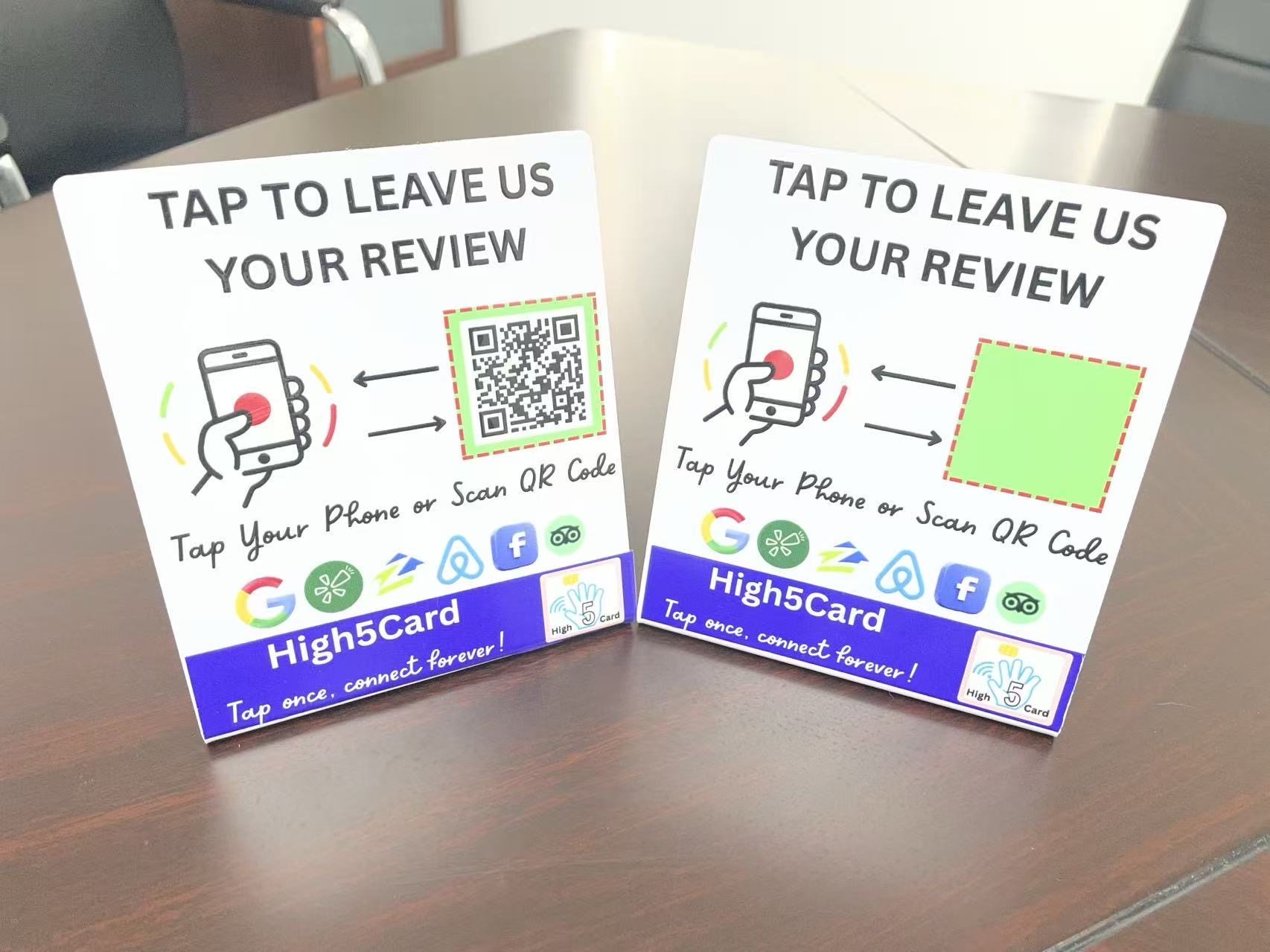
Your business may have more than one place where customers share their experience. Your customers may have more than one way they like to connect, too. Some are happy to tap a phone. Others reach straight for the camera to scan a QR code. And not everyone wants to use Google.
The High5Card Review Tap Stand brings those choices together. Its NFC tap link and printed QR code can point to the same destination or two different destinations. You decide what each route opens, then make that choice clear to the customer.
For example, tapping could open your Google review page, while scanning opens your Facebook page, Tripadvisor listing, or another review platform your business uses. That is a useful little feature with a big practical difference: the tap and the scan do not have to do the same job. Here is how to choose a setup that fits your business and the people you serve.
Your customers do not all use the same review platform
A business can have a presence on several platforms at once. Google might be where one customer checks your opening hours, while another follows your Facebook page. Someone else may use Tripadvisor or Yelp, or have discovered you through a different service entirely. Having a favorite platform as a business owner does not mean every customer shares it.
That matters when you invite feedback. A customer might be willing to share an experience but reluctant to create another account, remember a password, or learn an unfamiliar service. The extra step comes at a moment when they may simply want to finish their visit and get on with their day.
Start by looking at the real places your business already appears. Choose destinations that belong to your business, show the correct location, and make sense for your audience. There is little value in sending a customer to a platform you have not checked.
A stand with separate tap and scan destinations gives you room to serve two of those needs in one physical space. It does not require customers to visit both. It gives them a clear choice.
Google reviews require a Google account
Google is familiar to many people, but it is not everyone’s preferred place to leave feedback. Some customers do not have an account. Others have one but are not signed in on that phone, or simply prefer a different platform.
Google confirms that customers must sign in to a Google Account to leave a review. Using an NFC stand or QR code does not remove that requirement. Either method opens a destination; the platform still controls what happens next.
So if a customer says they do not use Google, avoid turning a friendly invitation into an account setup lesson. Acknowledge their preference and let them decide whether another available destination suits them. Other platforms can have their own sign-in requirements, too.
The useful promise is easier access, not account-free reviewing. Keeping that distinction clear prevents disappointment and helps your team explain the stand honestly. For help with the invitation itself, read our guide to asking for Google reviews without feeling pushy.
Some people would rather scan than tap
A tap can feel quick and natural to someone who already uses NFC. For someone else, opening the camera and scanning a square is the more familiar action. Neither customer needs to be persuaded that the other method is better.
A visible QR code gives people something recognizable to aim at. They can hold their phone at a comfortable distance, wait for a link prompt, and choose to open it. Their camera or scanning app needs to support QR codes, and they still need a connection to load the webpage.
This is why offering both methods is useful even when both open the same page. You are giving people a choice of interaction, rather than asking everyone to follow one habit. Our Google review QR code guide covers the checks that make a printed code easier to use.
There is one detail to remember when the destinations differ: the QR code becomes an alternative destination, not a backup route to the Google page. Your wording should make that difference obvious.
- TapUse a compatible phone with NFC enabled.
- ScanRead the QR code with a supported camera.
- ChooseOpen the page and decide what to do next.
Android NFC settings can be a stumbling block
A customer can own an NFC-capable Android phone without knowing whether NFC is switched on. They might hold it near the stand, see nothing happen, and assume the stand does not work. That is a frustrating end to what should be a simple interaction.
On supported Samsung Galaxy devices, Samsung explains how to enable NFC through Settings, Connections, then NFC and contactless payments. Names and locations vary across Android brands and models. Searching the phone’s Settings for “NFC” can help, but not every Android phone includes the feature.
If the customer wants to try tapping, ask them to unlock their phone, enable NFC where supported, and hold its reading area close to the stand’s tap target. The reading position can vary, so a small change in position may help.
If they would rather scan, let them. There is no need to turn a short visit into troubleshooting. When your tap and QR destinations differ, explain which page scanning will open before suggesting it. A scan that opens another platform does not replace access to a Google review form.
One stand, two links: the feature that opens up choice
The High5Card Review Tap Stand lets you choose the NFC destination separately from the QR destination. Think of the stand as two clearly labeled doors. They can lead to the same room, or to different rooms, depending on what your business needs.
Here is one way to use two different destinations:
- Tap the stand: open your business’s Google review page.
- Scan the QR code: open your Facebook page, Tripadvisor listing, or another review platform your business uses.
The customer chooses the route. Opening either page does not submit a review, pick a star rating, or sign anyone in automatically. The customer remains in control of what they do next.
Google and Facebook are only examples. The links should match the platforms your business actually uses. You could pair two other destinations instead, or send both actions to the same page. Use the exact public links for your business and follow each platform’s current rules for requesting feedback.
The photograph above shows High5Card stand examples, including one with a printed QR code and another with an unfilled QR area. It illustrates the physical design, rather than proving where a specific code leads. Your finished stand should carry your own checked destinations and wording that matches them.
- NFC tapOpens your Google review page.
- QR scanOpens Facebook, Tripadvisor, or your chosen platform.
- Clear labelsName the destination beside each action.
Same link or different links: choose the right setup
Use the same destination when you want both actions to support one task. For example, a tap and a scan can both open the same Google review page. Someone whose NFC is off can scan instead and reach the same place. This is the simplest option to explain with “Tap or scan to leave an honest Google review.”
Choose different destinations when offering access to two platforms matters more than giving two routes to one page. A Google tap link paired with a Facebook page or Tripadvisor listing QR code is one example. Label each action with the destination it actually opens, so customers do not have to guess.
Neither setup removes the rules of the destination platform. A Google review still requires sign-in whether the customer taps or scans. Other platforms have their own account requirements and rules for requesting feedback. Check the rules for the destinations you choose.
If both platform choice and access-method choice are essential, consider linking to a clear page you own that lists your business’s platforms. That is a different setup, with an extra step before the destination. Choose it only if that extra choice helps your customers.
Prepare both destinations before your stand is made
Begin with the exact addresses you want the stand to open. Do not send only the name of your business or a broad instruction such as “link to our reviews.” Similar business names and multiple locations make that easy to get wrong.
- Choose the tap destination. Open the intended page and check the business name and location.
- Choose the QR destination. Decide whether it should match the tap link or open a different page.
- Label both routes. Keep instructions short, but name different platforms when the actions lead to different places.
- Confirm the final design. Check spelling, business identity, and which instruction sits beside each target.
- Test the finished stand. Tap the NFC target and scan the printed code separately on real phones.
Test with a phone that is not being used to manage the business profile. An owner’s signed-in view can look different from the customer journey. Check the page that actually opens, rather than treating a notification as proof that everything is correct.
You do not need to submit a test review. Stop once you have verified the destination and sign-in flow. Our review tap setup guide explains the same basic destination checks for tap cards.
- Tap testConfirm the correct NFC destination.
- Scan testConfirm the printed QR destination.
- Customer viewCheck the page on another phone.
Make the choice clear at the counter
Place the stand where a customer can comfortably read it after receiving your product or service. Keep the QR code unobstructed and the tap area within reach. Avoid glare, clutter, and a position that makes someone lean across a payment terminal.
When the links differ, use clear wording such as “Tap for Google reviews” beside the tap target and “Scan to visit our Facebook page” beside the code. A single “Tap or scan” instruction can imply that both do the same thing, which is confusing if they open different platforms.
Give your team a short explanation: “The tap opens our Google review page. The QR code opens our Facebook page.” That is enough to explain the choice without a technical lesson or a sales pitch.
Keep participation optional. Do not offer rewards for reviews, request only positive feedback, or decide who gets the invitation based on whether they seem happy. A stand should make honest customer choice easier, not put people on the spot.
A High5Card stand that fits your customers
The best part of this feature is its flexibility. You can keep one destination and offer two ways to reach it, or give tap and scan different jobs. The right choice depends on your customers’ habits and the platforms your business actually uses.
Explore the High5Card review tools and provide your preferred tap and QR destinations when discussing your stand. Be clear about whether they should match. Do not assume that changing one destination later will also update the other, especially when the QR code is printed.
One stand, two ways to connect, and room for different preferences. That is a useful feature for a counter shared by all kinds of customers.
Frequently asked questions
Can the NFC tap and QR code open different platforms?
Yes. The High5Card Review Tap Stand can use the same link for both actions or separate links. For example, tapping could open your Google review page while scanning opens your Facebook page, Tripadvisor listing, or another review platform your business uses. Label each destination clearly.
Does a customer need a Google account to leave a Google review?
Yes. Google requires the customer to sign in to a Google Account to leave a review. Tapping a stand or scanning a QR code does not bypass that requirement.
What if a customer cannot enable NFC on Android?
They can scan the QR code if their camera or scanning app supports it. If the code has a different destination from the tap link, explain that difference. Some Android phones do not support NFC.
Which review platforms can we link to?
Choose the public pages your business actually uses, such as Google, Facebook, Tripadvisor, Yelp, or another review platform. Provide the exact destination for each action, test both links, and follow each platform’s rules for requesting feedback. You are not limited to one particular pairing.
When should both links be the same?
Choose the same destination when you want tap and scan to offer two ways to complete one task. That makes scanning a useful alternative when NFC is unavailable or a customer prefers their camera.


