That distinction matters because “RFID” describes a broad family of technologies. A phone may respond instantly to one tag and do nothing with another, even though both are called RFID. The result depends on the phone’s hardware, the tag’s technology, and what information the tag is designed to share.
This guide explains what an Android phone can reasonably read, how to make a quick first check, and when a separate reader is the right tool. If you are testing a tap-ready card, start with the route you want it to open, then test that whole journey on a second phone.
Can Android read RFID tags? The short answer
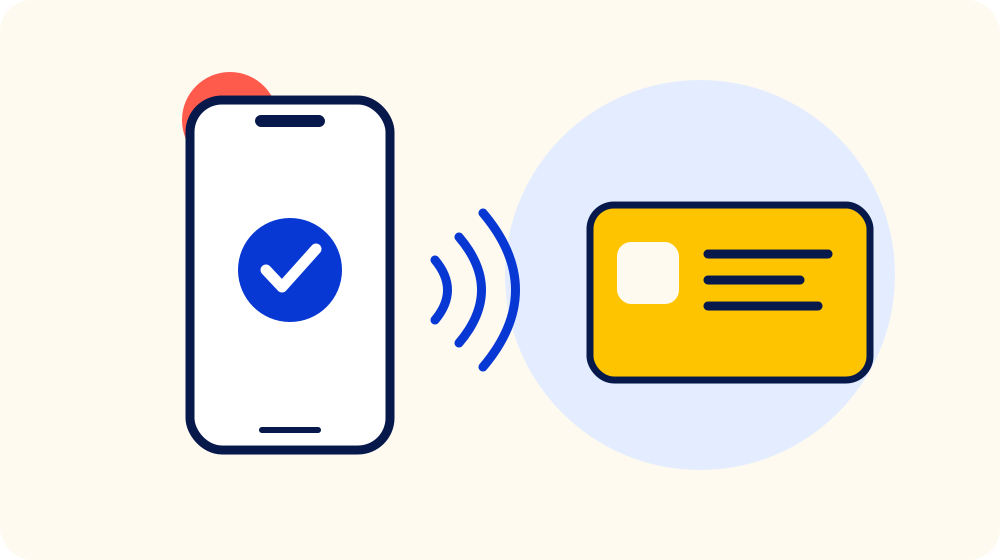
An Android phone with NFC can read compatible NFC tags. Android describes NFC as a short-range technology and supports reader/writer mode for passive tags and stickers. In ordinary terms, that means a compatible phone can detect a nearby NFC tag and act on the information it contains, such as a web address.
It does not mean the phone can read every item described as RFID. A long-range inventory label, a low-frequency building fob, an animal microchip, a payment card, and an NFC web-link tag can all sit under the broad RFID umbrella while using different systems. A phone’s built-in NFC hardware is designed for its own compatible range of tag technologies.
For an everyday customer handoff, that is usually good news. A tap-ready High5Card uses the close, deliberate phone-to-card interaction that NFC is made for. The tap opens the destination you choose. It does not automatically save a contact, change a phone, or grant access to anything.
- Tap cardA compatible phone can open a public link from an NFC tag.
- Unknown fobIdentify the technology before expecting a phone response.
- Long-range systemUse the approved reader made for that system.
NFC and RFID are related, but they are not the same test
Think of RFID as the broad label and NFC as one specific, phone-friendly kind of close-range contactless communication. The NFC Forum describes NFC as operating at 13.56 MHz with a very short typical range. That close range is intentional: a person brings the phone near the tag and chooses the next action.
Android’s NFC documentation says the connection typically starts at 4 cm or less. That is why a tap card is held close to the back of the phone rather than scanned from across a room. It is also why a phone that can open a link from an NFC card should not be assumed to read a warehouse label or every old access fob.
Compatibility is more useful than category labels. A tag can be part of an RFID system and still be a poor match for a phone. Before testing, find the tag’s documentation, product label, or the organisation that issued it. That gives you a better answer than trying several unrelated apps.
| What you have | What an Android phone may do | Best next check |
|---|---|---|
| NFC card, sticker, or keychain | Read a compatible tag at close range | Enable NFC and test the intended destination |
| Unknown RFID card or fob | It may not respond at all | Identify its exact technology before buying software or hardware |
| Inventory, animal, or long-range tag | Built-in phone NFC is not a safe assumption | Use the reader specified for that system |
For a deeper look at the phone-side basics, see our NFC reader for phone guide. It covers phone settings, reading positions, and the difference between reading a tag and writing one.
How to tell whether your Android phone has NFC
Start with your exact phone, not a generic list. Android support varies by model, region, and manufacturer. Open Settings and search for “NFC.” If the phone has the feature, that usually takes you to the control you need. If it does not appear, check the specifications for the exact model before assuming a reader app can fill the gap.
When NFC is available, turn it on, unlock the phone, and try a known working NFC tag. Hold the back of the phone close to the tag for a moment. If nothing happens, move the tag slowly across the back because antenna placement differs between phones. A thick case, metal plate, or wallet attachment can also make a first test harder.
Do not judge compatibility from contactless payment alone. Payment uses NFC, but reading a particular tag also depends on its format and the way the phone or app handles it. Android explains that its NFC framework can work with several supported tag technologies, including both standard NDEF messages and more specialised tag communication.
What happens when a compatible NFC tag is read
Most customer-facing NFC cards carry a small piece of information, often a web address. When the phone reads it, the phone offers the visitor a prompt to open that destination. The tag is the physical starting point. The webpage behind it is where the useful detail lives.
The Android NFC overview confirms that reader/writer mode can read and write passive tags, while Android’s tag system can recognise NDEF-formatted data. The NFC Forum also notes that an NFC tag can hold an internet link, contact information, a phone number, or other small data records.
That is why a familiar web address is a strong first use. It works with the visitor’s own browser and lets them decide whether to continue. A contact file can also be useful, but the recipient still chooses whether to download or save it. Nothing should be described as automatic when it is really an invitation to take the next step.
For a professional introduction, a clear destination is more helpful than a crowded one. A Digital Business Card can open the public contact or profile page you provide. If you are still preparing the details, the free digital contact-card tool is a useful place to create and test a contact file before sharing it.
- No promptCheck NFC, the phone position, and tag compatibility.
- Wrong pageCheck the link stored on the tag.
- No loadCheck the phone connection and the public destination.
Three quick checks before you blame the phone or tag
A quiet tap does not immediately prove that the phone or card is broken. Check these three things in order:
- Confirm the phone. NFC should be present, enabled, and the phone should be unlocked for the first test.
- Confirm the tag type. A tag that belongs to a different RFID system may never work with the phone’s built-in NFC reader.
- Confirm the destination. If a prompt appears but the page will not load, the tag likely read correctly and the issue is the link or internet connection.
This simple split saves time. No prompt at all points to the reading step. A prompt that opens the wrong page points to the saved destination. A correct page that does not load points to the phone’s connection or the webpage itself.
For a product that customers will tap in public, test one physical item with more than one compatible phone. For a review display, also test the printed backup route. The Review Tap Stand guide explains how its NFC tap and QR code can use the same link or separate links, and why the labels should make that clear.
When an Android phone cannot read the tag
Some RFID systems require a dedicated reader because they use a different frequency, protocol, security model, or range than the phone’s NFC hardware. An app can help a compatible phone interpret supported data, but it cannot add a missing antenna or turn the phone into every type of RFID reader.
Access cards and payment credentials need special care. Do not assume a readable tag can be copied, replaced, or used in a different system. The organisation that operates the credential should provide the approved process and hardware. A consumer NFC card that opens a webpage is a very different job from a controlled access or payment system.
Likewise, a phone that recognises a tag is not necessarily authorised to use the service connected to it. Detection, reading information, changing information, and authenticating access are different tasks. Keep the goal narrow: use the right reader for the system and the approved process for any credential.
If the tag is for a known system, identify its documented technology first, then select hardware that explicitly supports it. If the goal is only to open a public page after a tap, a dedicated reader is usually unnecessary. A compatible phone and a carefully tested NFC tag are the simpler fit.
- TapRead the actual finished card with a compatible phone.
- OpenConfirm the prompt leads to the intended public page.
- CheckTry the page’s important next action before sharing it.
Set up a tap that people can actually use
For a card, counter sign, or keychain, the question is not just “Can this phone read the tag?” It is “Does the person reach something useful once it reads?” Start with one clear public destination, then check the whole path.
- Choose the destination. Use a contact page, business profile, portfolio, or honest review page that you are ready to share.
- Test the NFC tap. Use a compatible Android phone and try the actual finished item.
- Open the prompt. Make sure the address loads the page you expected.
- Check the next action. Test the contact, button, or information a visitor needs after arriving.
- Add a clear backup when relevant. A QR code can help people whose phone is not ready to tap.
High5Card products are made for that physical-to-digital handoff. Browse NFC products for an introduction, counter, or everyday carry moment. For a branded version, custom card options let you provide your own design at no extra charge. The card opens the public link you choose, so that link deserves the same care as the printed design.
The practical answer
An Android phone can read compatible NFC tags, which is enough for many useful tap-to-open experiences. It cannot be treated as a universal RFID reader. Check the exact phone, enable NFC, bring it close to a known compatible tag, and test the real destination.
That approach keeps the promise simple. A tap should make useful information easier to reach. It should not depend on assumptions about every phone, every RFID tag, or every contactless system. When the tag and destination are both chosen for the job, the experience is easy to understand and easy to test.
If you are deciding between a physical tap card, a QR code, and a digital contact file, our digital business card examples show how each can support a clearer follow-up after an introduction.
Frequently asked questions
Can Android phones read all RFID tags?
No. Android phones with NFC can read compatible NFC tags, but RFID covers many other technologies. A long-range inventory tag, animal microchip, access credential, or payment card may require different approved hardware or permissions.
Does an Android phone need an app to read an NFC card?
Often, a compatible Android phone can recognise a standard NFC web-link tag without a separate reader app. A specialised tag or task may need an app that supports that tag technology. An app cannot add NFC hardware to a phone that does not have it.
Why does my Android phone not react to an NFC tag?
First check that the phone has NFC, that NFC is turned on, and that the phone is unlocked. Then hold the tag close to different points on the back of the phone. If there is still no prompt, the tag may not use a compatible NFC technology.
Can an Android phone read a building access card?
Do not assume it can. Access cards can use different technologies and are managed by the organisation that issued them. Use that organisation’s approved process rather than trying to copy, replace, or emulate a credential.
What should an NFC business card open?
Open one public destination that helps a new contact take the next useful step, such as a contact page, business profile, portfolio, or other relevant page. Test the complete tap and page experience before sharing the card.