Looking for an NFC reader for your phone? You may already have one built in. Many smartphones can read a compatible NFC tag inside a business card, review stand, keychain, or sticker. You hold the phone close, open the link prompt, and choose what to do next.
The important word is compatible. Your phone needs NFC hardware, the right settings, and a tag it can read. A payment feature alone does not tell you everything about tag reading, and an app cannot add an NFC antenna to a phone that lacks one.
This guide explains how to check your phone, enable NFC, get a reliable read, and decide whether you need an app or a separate reader. For everyday High5Card taps, the goal is a clear, simple route to useful information.
How your phone works as an NFC reader
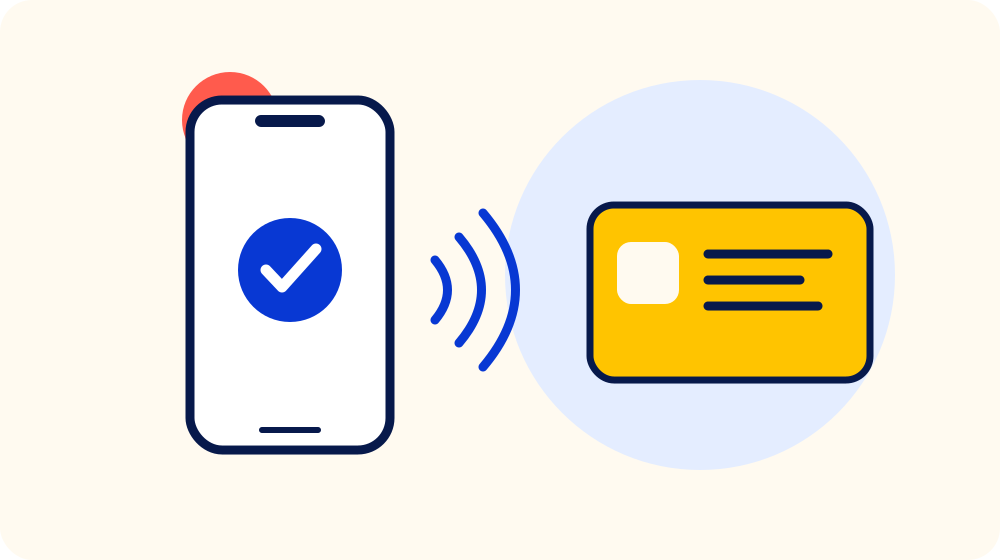
NFC stands for near-field communication. For a typical tap card, the phone acts as the reader and the card contains a small passive tag. The phone supplies the field that lets the tag respond, so the tag does not need its own battery or charging cable.
The NFC Forum explains that NFC can transfer both data and power over a short distance. Reader mode lets the phone read information stored on a compatible tag. Card emulation, used in contactless payments, is a different role.
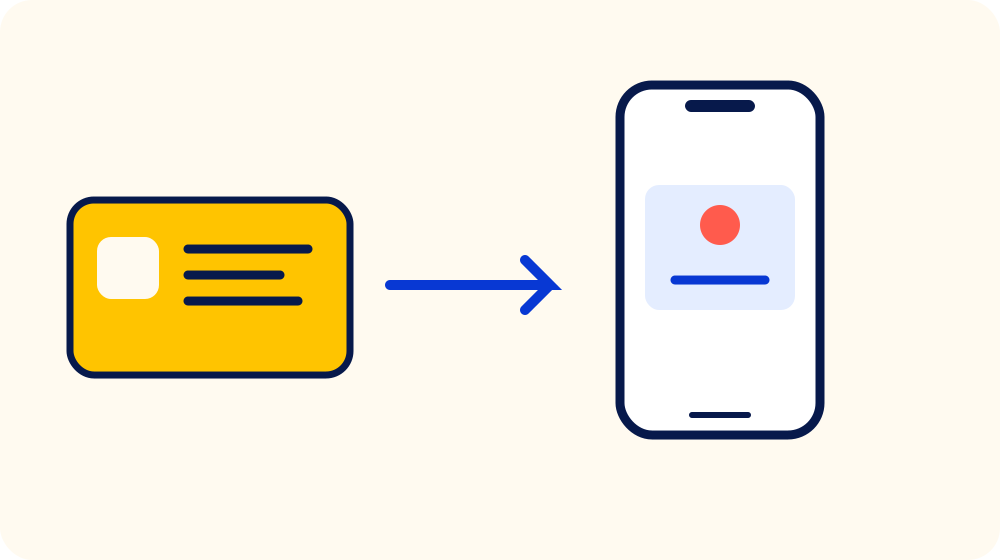
A common tag contains a website address. The phone reads that address and offers to open it. What appears next depends on the destination: a contact page, a business profile, or a review page, for example. The tag is the doorway, rather than the whole online service.
You do not pair a basic NFC web-link card through Bluetooth. Hold the phone close to the target and wait for its response. Reading the tag itself does not need internet access, but loading the linked webpage usually does.
Which phones can read NFC tags?
Check the exact model before buying hardware or assuming a tag is faulty. Android phones vary by model and sometimes by regional version. A Settings search for “NFC” is a useful first check; the manufacturer’s specifications are the better confirmation if the option is missing.
For iPhones, distinguish background reading from reading through an app. Apple documents background tag reading on iPhone XS and later. That means a supported phone can recognize a suitable web-link tag during normal use and show a notification without a dedicated reader app.
Older NFC-capable iPhones, such as the iPhone 7, 8, and X, do not offer that same background experience. They may need a compatible reader app or a manually started reader session, depending on the model and software. Avoid promising the same steps for every iPhone.
Compatibility also depends on the tag format. An ordinary phone-readable NFC web link is different from a protected access badge, payment credential, or long-range UHF RFID label. Having NFC does not mean a phone can read, copy, or replace every contactless card.
For business use, test your actual card with the phones your customers use. Our NFC business card guide covers preparing the contact-sharing journey.
How to turn on NFC on Android
Start by opening the phone’s Settings and searching for “NFC.” If the phone supports the feature, the result should lead to the relevant control. Enable NFC, unlock the phone, and return to the home screen before trying a known working tag.
The menu names depend on the manufacturer:
- Samsung Galaxy: open Settings, then Connections, then NFC and contactless payments. Switch NFC on. Samsung’s NFC instructions show the supported settings.
- Google Pixel: open Settings, Connected devices, Connection preferences, then NFC, and turn on Use NFC. These are the steps in Google’s Pixel connection guide.
A phone can have additional controls that affect how NFC works while locked. Unlocking it for your first test removes one possible obstacle. If a setting is not there, check the model’s specifications rather than downloading several reader apps and hoping one will add the missing hardware.
You do not need to change your default payment card to read an ordinary NFC web-link tag. Those are separate tasks, even though both use the phone’s NFC capability.
How to read an NFC tag on iPhone
On an iPhone with background tag reading, there is usually no NFC switch to enable for this task. Wake and unlock the phone, hold its top edge close to the card’s target, and wait for the notification. Tap that notification to open the destination.
Close the camera and stop using Wallet or Apple Pay before testing. Apple lists situations where background reading is unavailable, including camera use, Wallet use, Airplane Mode, and a phone that remains locked after a restart.
If you use an older iPhone, start a supported reader session through the available reader control or a compatible app. Check the app’s supported devices and iOS requirements. An instruction written for a newer phone may not match your screen.
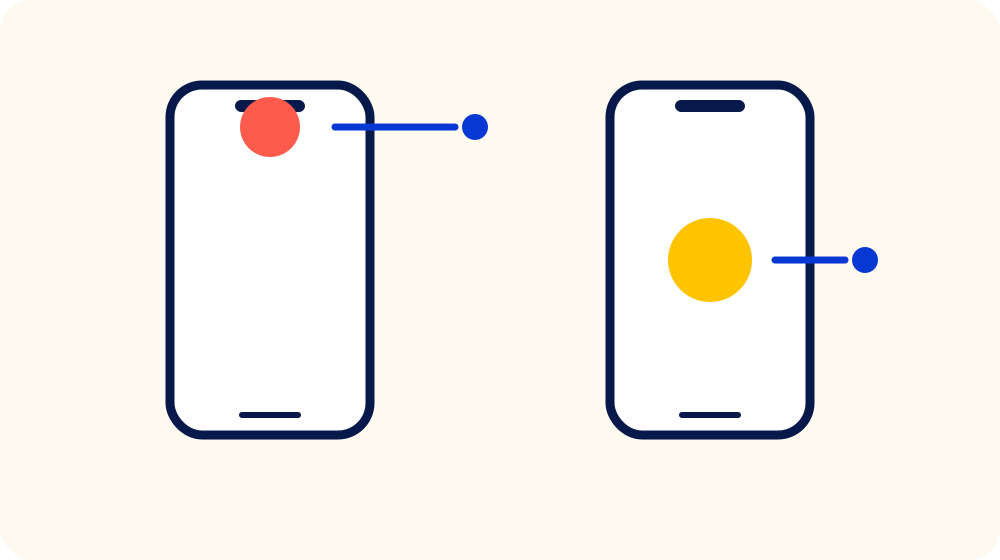
Keep the phone close for a moment instead of sweeping it quickly across the card. If the first position fails, move slightly and try again. You are locating a small reading area, not trying to scan the whole surface at once.
Get a reliable tap in a few simple steps
A good first test uses a tag with a confirmed working link. If you start with an unknown blank tag, silence tells you very little about the phone. Keep other contactless cards away while you test one item at a time.
- Wake and unlock the phone. Enable NFC on Android where required.
- Find the target. Hold the phone’s reading area very close to the tag. Physical contact is not required.
- Pause. Give the phone time to recognize the tag, then adjust its position if needed.
- Open the prompt. Check the destination before proceeding.
- Complete the next step yourself. Saving a contact or leaving a review remains your choice.
If the tag opens a contact page, that does not automatically save a contact to your address book. Our guide to digital contact sharing explains the difference between a contact file, a hosted page, and a tap that opens its link.
What to check when nothing happens
Separate a reading problem from a webpage problem. No prompt at all suggests the phone has not read a suitable tag. A prompt followed by an error page means the tag was read, but something about the destination or connection needs attention.
- No NFC option: confirm that your exact phone model has NFC hardware.
- No response: check the setting, unlock the phone, and try a different position.
- Interference: remove a thick case, metal plate, or attached card holder for a fresh test.
- One tag fails: try a known working tag, then try the suspect tag with another compatible phone.
- The page does not load: check mobile data or Wi-Fi and test the destination link directly.
- The wrong page opens: verify the address stored on the tag.
A blank tag may contain no web link to trigger a notification. A locked or specially formatted card can also behave differently from a consumer tap card. Do not assume every quiet scan means a broken phone.
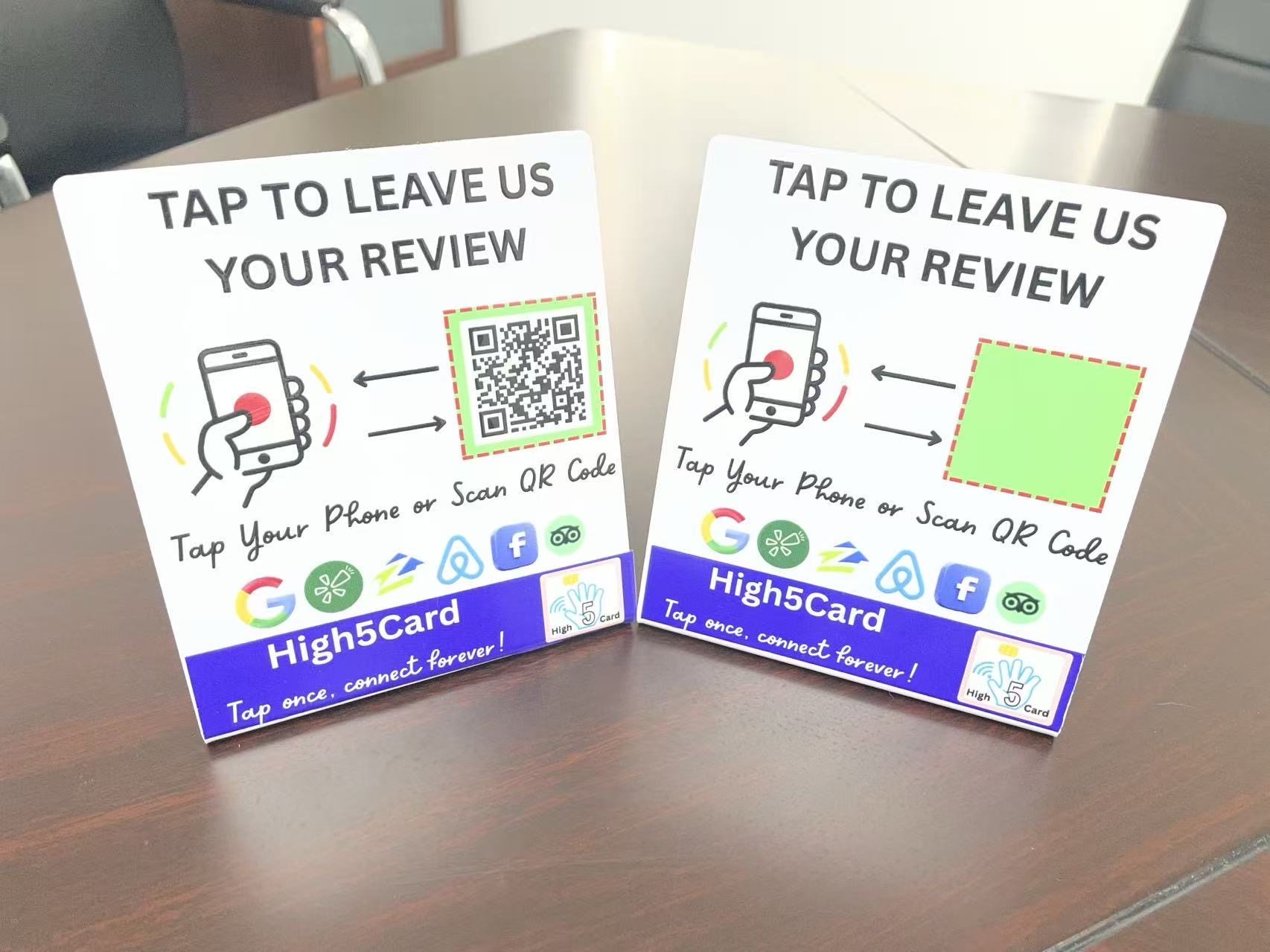
For customer-facing displays, a QR code can offer another way to connect. With the High5Card Review Tap Stand, the tap and QR code can use the same or different links. If the destinations differ, explain that clearly before suggesting a scan instead.
Reading a tag is different from writing one
Reading retrieves what is already stored on the tag. Writing changes that stored information. You can use a prepared web-link card without learning to write tags, but creating your own blank-tag setup is a separate job.
On a compatible Android phone or iPhone, a suitable app can write to supported, writable NFC tags. Apple’s tag-writing documentation confirms that iPhone apps can create NFC tag content. The app, phone, tag type, available memory, and write protection all need to support the operation.
The common format is NDEF, short for NFC Data Exchange Format. For a simple customer journey, a standard website-address record is usually easier to share across phones than an unusual custom action. Keep the destination short and test the complete address.
Memory is limited. NXP lists 144, 504, and 888 bytes of user memory for NTAG213, NTAG215, and NTAG216 chips respectively. That is space for small records, not a place to store a whole website. A long URL or a large contact record may need more capacity than a short link.
Test before enabling permanent read-only protection. A locked tag may no longer accept changes, even if you discover a typo afterward. Changing the webpage behind a link and rewriting the address on the physical tag are different operations.
When a separate USB NFC reader makes sense
A phone is a sensible starting point for reading everyday tap cards and preparing a few supported tags. A separate reader is worth considering when you have a desk-based workflow, many tags to process, or software that requires a particular reader.
For larger batches, compare the whole process: entering each destination, writing it, reading it back, and tracking which physical item received which link. A fixed reader may make that workflow more convenient, but it does not guarantee correct data or faster results on its own.
Before buying, check the reader’s supported tag types, your computer’s operating system, and the software you plan to use. A USB connector alone is not proof of compatibility. A phone without NFC does not automatically gain universal tag support just because you plug in an accessory.
If all you want is to use a prepared business card or review stand, start with a compatible phone. There may be no reason to buy extra hardware.
Put the reader you already have to work
For most High5Card customers, the useful question is what the tap should open. A High5Card NFC product can provide a physical starting point for a contact page, business profile, or review destination. Choose the next step first, then check the link and the customer’s phone experience.
For a branded card, explore custom High5Card designs. For a counter or reception area, our review tools help put the destination within reach. High5Card offers a 30-day return guarantee on all products.
Check the phone, find its reading area, and test the actual destination. A reliable tap comes from those small checks, rather than adding hardware you may not need.
Frequently asked questions
Do I need an app to read an NFC card?
Many compatible Android phones and iPhones with background tag reading can open a standard NFC web-link card without a dedicated reader app. Older phones, other tag formats, or specialized tasks may need an app. The phone still needs NFC hardware.
Can an app add NFC to a phone without it?
No. An app cannot supply the missing NFC hardware. Check your model’s specifications. For a customer-facing stand, a QR code can provide another route when available, though its destination may differ from the tap link.
Can I write NFC tags with an iPhone?
Yes, with a compatible iPhone, suitable app, and supported writable tag. Reading an existing link and writing a new one are separate tasks. Check the tag’s memory and protection settings before attempting a write.
Does an NFC tag need a battery or internet connection?
A typical passive NFC tap tag gets power from the reader’s field and does not need a battery. Reading its stored data does not require internet access, but opening a website stored as a link normally does.
Can my phone read every RFID card?
No. NFC support does not mean universal RFID compatibility. Long-range UHF labels, protected access cards, and payment credentials can require different hardware, permissions, or systems. Check the specific tag type and intended use.