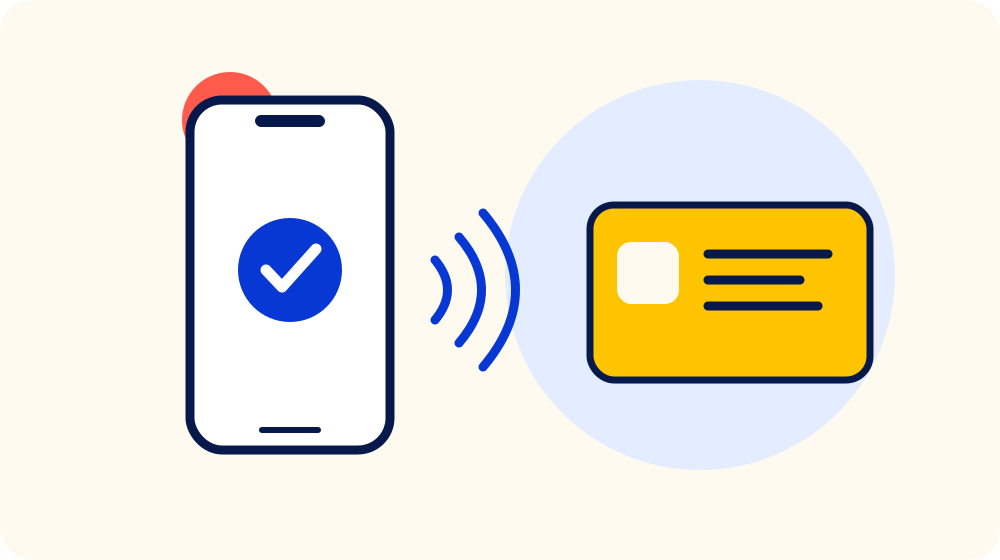
A digital business card can be a browser-based contact page, a downloadable contact file, a QR code, an NFC card, or a combination of those things. The format matters less than the handoff. Someone has just met you, may be standing up or walking away, and needs to understand what to do in a few seconds.
Below are three useful digital business card examples to adapt. Each uses the same foundation: recognisable details, one priority action, and a backup for the moments when a tap or connection is not convenient.
What makes a digital business card useful?
A digital business card is a short route from an introduction to useful information. It should help a new contact recognise you, understand your work, and choose a reasonable next step without hunting through a crowded page.
That means starting with the basics: your name, role or plain-language description of what you do, business name where it helps, and the contact method you actually monitor. A photo can help when people meet many faces at an event. A logo can help when they met your team rather than you personally. Neither needs to dominate the screen.
Think of the first screen as an answer to three quiet questions: Who is this? Why might I want to remember them? What can I do next? If the answer takes a long scroll to find, tighten the layout. A visitor can always explore later. The first job is to give them enough confidence to choose that next step.
Then choose one primary action. A consultant might make email the first action. A photographer might lead with a portfolio. A local service business may put a booking page or service list first. More links are not automatically more helpful. Keep secondary links available, but do not make a new contact guess which button continues the conversation they just had.
Use the same language you used in person. If you told someone, “I can send the event checklist,” a button labelled “Get the event checklist” is more useful than “Discover my ecosystem.” Direct wording reduces the small moment of uncertainty that makes people close a page and forget about it.
If you offer a downloadable contact, a vCard is a standard format for exchanging contact information. The recipient still decides whether to save it. A web page gives context before that decision, while a contact file is useful when the person simply wants your details in their address book.

Example 1: The consultant who makes follow-up easy
Imagine an operations consultant meeting a business owner at a local event. The owner mentions an upcoming expansion and asks what the consultant does. The best card for that moment does not send them to a generic social feed. It gives them a simple way to continue the specific conversation.
The top of the page can show the consultant's name, a clear role such as “Operations consultant for growing service businesses,” and an email button. Beneath that, one short sentence can explain the practical outcome: “I help teams turn growing pains into repeatable processes.” The visitor now knows who this person is and why a follow-up might be useful.
The main button could read “Email about your next project” or simply “Send an email.” A secondary button might offer a short services page. A third, lower-priority option could download the contact. That order respects the context of the conversation instead of assuming every visitor wants a sales call.
Before an event, the consultant should tap and scan the actual card with another phone, open every button, and check the email address. The High5Card contact-card generator can help prepare a VCF contact file and a contact QR code. Review the details before sharing them, especially phone numbers and email addresses where one small mistake stops a follow-up cold.
This example works because it replaces a vague “keep in touch” with a route that matches the conversation. It also leaves the decision with the other person. A digital card can make a contact path easier to reach, but it cannot create interest or permission on its own.

Example 2: The creative professional who shows one relevant proof point
A designer, photographer, illustrator, or videographer usually needs a little more visual evidence than a consultant. Even so, the card should not turn into an endless gallery. Someone who has just met you needs a fast way to understand the kind of work you do and decide whether to look closer.
A good creative card opens with a name, discipline, and one selected image or project link. For example, a photographer could use “Brand and hospitality photography” as the role, followed by a button for a concise portfolio. The portfolio should open quickly and show the kind of work they want more of, not every job they have ever completed.
Use a second button only if it answers another likely question. “Check availability” or “View packages” may be helpful. Five social icons, a newsletter form, and a long biography usually are not the right first move after an introduction. A new contact can find those later if the portfolio earns their attention.
Keep ownership and privacy in mind. Only publish images, client names, addresses, or project details that you have permission to share. If the card leads to a public page, treat every item on it as public. A polished card is not worth exposing a private client detail.
This version works because it gives the person a low-friction way to verify fit. It does not promise that a tap will produce a booking. It makes the work easy to see, then gives the visitor room to decide.
Example 3: The event representative with a reliable backup
At a trade show, conference, or busy open house, a contact exchange often happens in a hurry. The recipient may have a phone case on, a low battery, no signal, or simply no time to troubleshoot. That is why the strongest event card includes a backup path.
The first route can be NFC. A compatible phone held near the card can offer to open the destination. The NFC Forum describes NFC as short-range technology, which is why position and device compatibility matter. A tap is convenient when it works, not a reason to make the whole exchange depend on one method.
Print a QR code that opens the same destination, or have a direct contact QR available when saving contact details is the main job. You might also keep a readable email address or short web address on the physical card. The backup should be clear enough that the other person can use it without asking for a demo.
Keep labels honest. If a code opens a contact page, say “Open my contact page.” If it opens a product sheet, say that. Do not label an unfamiliar destination “Scan for more” and hope the visitor finds the right thing. Clear labels are a small courtesy that saves a lot of friction.
Test the actual finished card before the event. Scan the printed QR, tap the NFC card on more than one compatible phone if you can, and open the page on mobile data. The named QR code generator is useful when you need a clearly labelled QR for a public page. It keeps the visible name with the image so the code is not separated from its purpose later.

Build your card in this order
Use the examples as a structure, not a template you have to copy exactly. Start by writing down the one thing you hope a new contact does after meeting you. Then build from there.
- Name the next action. Choose one primary job, such as saving your contact, viewing your work, or sending an email.
- Add recognition details. Include your name, plain-language role, and a photo or business mark when it helps someone remember the introduction.
- Choose only useful links. Keep the page short enough to scan. Put secondary links lower on the page.
- Prepare a backup. Use a QR code, readable web address, or direct contact file when the setting calls for it.
- Test the whole handoff. Check the card, the phone prompt, the destination, and every action button before you rely on it.
For a printed card, make sure the physical design supports the digital destination. A person should be able to see where to tap or scan, understand what will happen, and find your basic details without needing a tutorial.
If you are moving from paper, start by checking the details you already give out. The business card scanner can pull a paper card into your browser as a starting point, but verify every extracted field before saving or sharing it. Recognition is useful. Accuracy is the real requirement.

Run a five-minute handoff test
Before you use a digital business card in a real introduction, test it as if you were meeting yourself for the first time. Start from a phone that does not already have your contact saved. Tap the card or scan the code, wait for the destination to open, and ask whether the first screen explains what it is for without any extra context.
Next, try the main action. If the card is meant to share a contact, download the file and check the name, email address, phone number, and company display correctly. If it leads to a portfolio or booking page, make sure the page loads cleanly on a phone and the primary button does what its label promises. Do not stop at the first screen.
Finally, test the backup route. Scan the printed QR, type the short address if you include one, and open the page over mobile data. Event Wi-Fi, old browser tabs, and your own saved details can make a route appear healthier than it will be for a new contact. A few quiet minutes of testing are much better than discovering a broken handoff while someone is waiting in front of you.
Repeat the check whenever you change an email address, service page, profile, or printed card. The physical card and digital destination are one experience. Keeping both current is part of making the card useful.
How High5Card fits the handoff
High5Card's Digital Business Card is a physical, tap-ready card for sharing the contact page, website, or business profile you provide. A compatible phone opens that destination. It is a one-time purchase with no High5Card subscription, software fee, or hosting fee.
Choose the destination before ordering. It might be a public contact page, a portfolio, or a page that explains your services. If you are still preparing the details, start with the free digital business card tool or make a contact file first. Then test the link on a phone before using it as the card destination.
A card is most useful when it supports a good introduction, not when it tries to replace one. Give people a clear way to find you after a relevant conversation, and let them choose whether to take the next step.
Frequently asked questions
What should a digital business card include?
Include the details a new contact needs to recognise you and take one useful next step: your name, a clear role or description, a contact method you monitor, and a relevant link. A photo, logo, or downloadable contact can help, but keep the first screen focused.
Should I put every social link on my digital business card?
No. Add only the links that help the person continue the conversation or understand your work. A long row of inactive or unrelated profiles can make the important next step harder to spot.
Can an NFC business card save my contact automatically?
No. A compatible phone can open the destination written to the card, but the recipient decides whether to download a contact file or save anything. The card makes a route easier to reach; it does not take action for the person.
Do I need a QR code as well as NFC?
A QR code is a useful backup when a phone is not ready to read NFC or the person prefers to scan. Use a clear label and test both routes so they open the destination you expect.
What should I test before using a digital business card at an event?
Test the physical card, the NFC tap when applicable, the QR code when included, the destination page, and every contact or action button. Check on a second phone when possible, because your own phone may already have your details saved or cached.